LLM Client Integration (MCP)
Use Fluree's Enterprise Data GenAI capabilities with any compatible LLM client through the Model Context Protocol (MCP), enabling hallucination-free knowledge consumption while maintaining access to your LLM's full toolkit.
What is MCP and Why Use It?
The Model Context Protocol (MCP) is an open standard that enables secure, controlled connections between LLM clients and external data sources. When you combine MCP with Fluree, you unlock a powerful combination: your LLM client maintains access to all its built-in tools and capabilities while gaining the ability to query your Fluree datasets with the same precision and reliability you experience in Fluree's native chat interface.
This approach gives you the best of both worlds - the familiar interface and extensive tooling of your preferred LLM client, enhanced with Fluree's GraphRAG technology that eliminates hallucinations and provides verifiable, query-based answers from your structured data. Whether you're using Claude Desktop, other MCP-compatible clients, or building custom integrations, the Fluree MCP server provides a standardized way to access your organization's data knowledge.
Prerequisites
Before setting up the Fluree MCP server, ensure you have:
- Node.js 20+ installed on your system
- An MCP-compatible client (such as Claude Desktop)
If you use the Desktop Extension (.dxt) method below, the default configuration will allow you to demo the Fluree MCP Server w/ a public, read-only dataset modeled around Supply Chain concerns.
If, however, you want to connect to your own Fluree datasets, make sure that you have registered for a free Fluree Cloud account and have created at least one dataset with a valid Data Model (see the Fluree GenAI Tutorial for a quick start guide).
Implementation Methods
Choose one of the following methods to run the Fluree MCP server:
Method 1: Desktop Extension (.dxt)
The Desktop Extension format and standardized protocol provides the easiest installation experience for end users, enabling single-click setup of the Fluree MCP server.
To learn more about the .dxt format and MCP installation pattern, see
Anthropic's announcement on Desktop
Extensions or visit
the DXT GitHub repository.
Requirements
- Node.js 20+ installed on your system
- Claude Desktop or another MCP client that supports
.dxtextensions
Installation Steps
-
Download the Fluree MCP Extension
-
Install the Extension
- Double-click on the downloaded
.dxtfile to open it with your MCP-compatible client (e.g., Claude Desktop)- On Windows machines, you may need to first open the MCP-compatible client and then look in Settings for Desktop Extensions or MCP Servers to install the
.dxtfile.
- On Windows machines, you may need to first open the MCP-compatible client and then look in Settings for Desktop Extensions or MCP Servers to install the
- Follow the installation prompts to complete setup
- Double-click on the downloaded
-
Configure Connection
The Fluree MCP Server Desktop Extension will be pre-configured with all the required options listed below. It will run as a demoaccount with read-only access to a public dataset modeled around Supply Chain concerns.
If you want to skip config customization for now, simply click Save and then Enable the Fluree MCP Server extension.
- During installation or at any later point in time, you can configure the Fluree MCP Server extension with the following:
- The Fluree dataset(s) you wish the MCP server to access
- Your Fluree user handle (e.g. username for Fluree Cloud)
- Your Fluree Cloud Account-Wide API Key (see below for details)
- (Optional) A custom Fluree Server URL (if you want to opt for a self-hosted Fluree server instead of Fluree Cloud)
If you have not yet created a Fluree Cloud Account-Wide API Key, you can do so by accessing your account's Settings (upper-right corner of the Fluree Cloud UI) and navigating to the API Keys section.

After saving your configuration (you may need to click a button like Save or Apply depending on your LLM Client), you should be able to toggle the Desktop Extension ON. From there, all new / existing chats should have access to the Fluree MCP server.
The LLM Client will now have access to the Fluree MCP Server (and by extension, your dataset data) to answer any questions you ask of it.
If your LLM Client supports other tools like web search, it may not always be obvious if, as a user, you intend your question (e.g. "What was the most popular product in Q4 2024?") to be answered by your Fluree-hosted data or by other tools.
Consider including in your question something like "In my Fluree data, what was the most popular product in Q4 2024?" to help the LLM Client understand your intent.
Method 2: NPM Package
For more control over the installation and configuration, you can install and run the MCP server directly using npm.
Installation
Choose one of these approaches:
Install globally:
npm install -g @fluree/fluree-mcp-server
Or run directly with npx:
npx @fluree/fluree-mcp-server
Configuration
The Fluree MCP Server supports several configuration options. You can view them all by running fluree-mcp-server --help.
$ fluree-mcp-server --helpUsage: fluree-mcp-server [options]TypeScript MCP server for Fluree database accessOptions: -V, --version output the version number --transport <type> Transport type (stdio, sse, http) --bind-address <address> Server bind address --port <number> Server port --fluree-base-url <url> Fluree base URL --dataset <dataset> Dataset to use at startup (can be specified multiple times) --fluree-api-key <key> Fluree API key in format "handle=key" --dataset-policy <policy> Dataset policy in format "dataset=policy1,policy2" (can be specified multiple times) -h, --help display help for command
Using the MCP Server
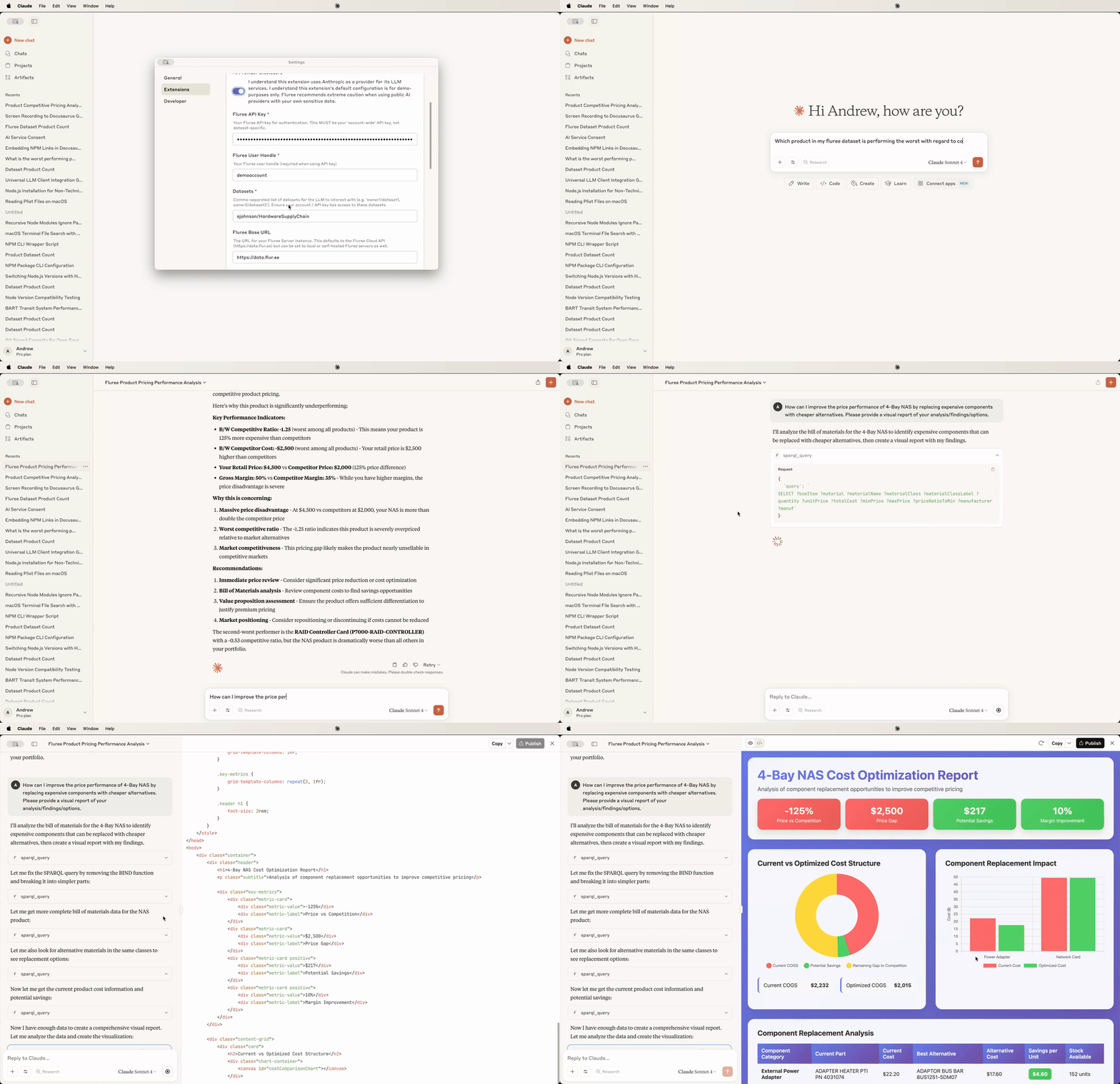
Once connected, your LLM client will have access to Fluree-specific tools that enable:
- Natural Language Queries: Ask questions about your data in plain English
- SPARQL Generation: Automatic generation of precise database queries
- Data Model Exploration: Understand the structure and relationships in your datasets
- Policy-Aware Access: Respect data access policies and permissions
The default configuration for the Fluree MCP Server Desktop Extension will connect w/ read-only access to the same Hardware Supply Chain dataset that we provide as a tutorial in the Fluree GenAI Tutorial Documentation.
You can immediately begin to test the Fluree MCP Server by asking questions like:
"In my Fluree dataset, what are the 3 worst performing products when compared to competitive product pricing?"
"In my Fluree dataset, how can I improve the price performance of my worst performing product by replacing its components with cheaper alternatives? Please provide a visual dashboard of the solutions/findings/options."
Next Steps
With the Fluree MCP server running, you can:
- Start asking analytical questions about your data through your LLM client
- Explore the generated SPARQL queries to understand how answers are derived
- Configure additional datasets or adjust access policies as needed
- Integrate the MCP server into custom workflows or applications